Why Minecraft Players Are Searching for Gamma Texture Packs
Minecraft players across Bedrock platforms have run into a problem. Exploring dark caves, navigating the Nether, and building at night all demand proper lighting. Players used to rely on fullbright shader packs for enhanced visibility, but that option vanished when Mojang introduced a major change.
The Minecraft Bedrock 1.16 update brought the RenderDragon engine, which no longer supports external shaders, causing fullbright packs to stop working. Thousands of players who depended on those brightness tools suddenly found themselves placing torches again or squinting through dark environments. This sparked the rise of a new solution: gamma texture packs.
These packs bypass RenderDragon limitations entirely. They increase the game's gamma (brightness) beyond 100%, using a different technical approach that works within Bedrock's current restrictions. The search trend reflects genuine demand from survival players, miners, and builders who want clearer visibility without modifying game files or enabling cheats.
What Gamma Texture Packs Actually Do
Gamma texture packs don't function like traditional texture packs that reskin blocks or items. They add a colored overlay to the screen, making it easy to see things in the dark and work with RenderDragon. Think of it as permanently wearing night vision goggles—except you don't need potions, experimental features, or game modifications.
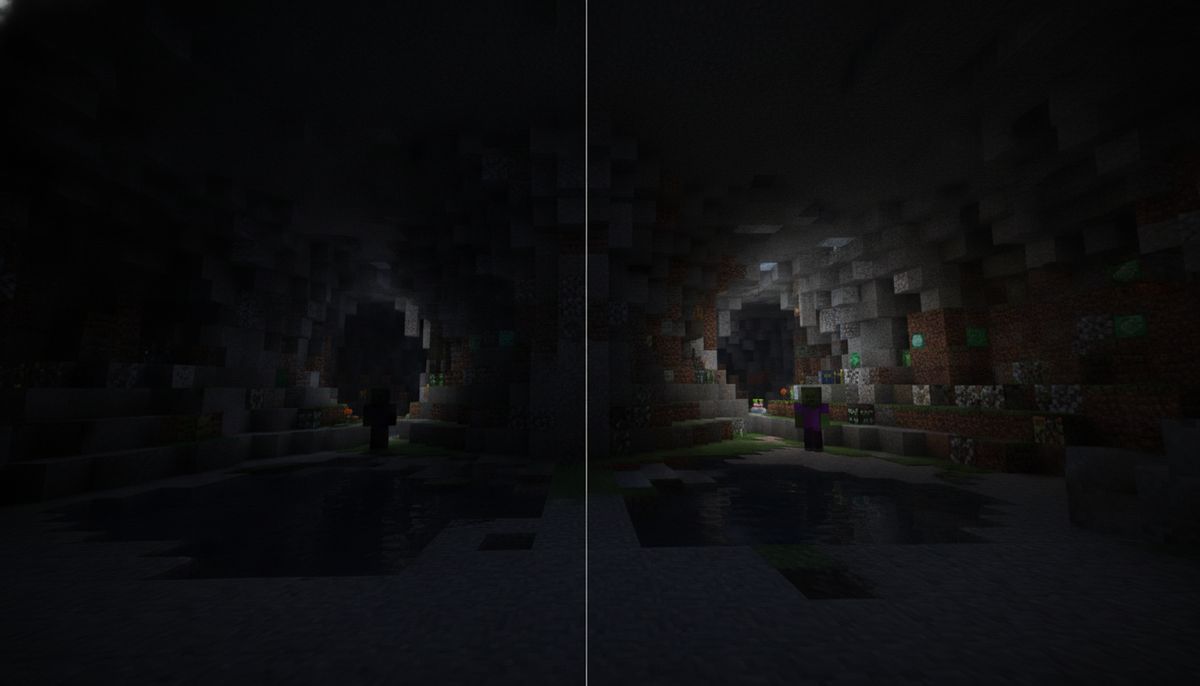
The technical method involves applying a semi-transparent white or green overlay across your entire field of view. This overlay brightens everything underneath it, simulating increased gamma levels that normally can't exceed Minecraft's standard brightness slider. Dark caves become visible. The Nether's shadowy corners light up. Nighttime environments no longer require torches every few blocks.
The game becomes bright enough that you can explore dark areas without torches. You'll spot diamond ore embedded in cave walls, identify hostile mobs before they reach you, and navigate complex underground systems without constantly stopping to place light sources. This doesn't eliminate darkness entirely—extremely dark spots remain somewhat dim—but the improvement is significant.
Key Features and Pack Variants
Multiple creators have released gamma packs with slight variations. The Gamma Brightness pack by Lakhii has over 18,600 downloads on CurseForge, while Blue_Print's Night Vision texture pack reached over 161,200 downloads. These numbers demonstrate how widespread the need for this solution has become.
Most gamma packs offer two overlay options:
White Overlay Mode: The standard option that brightens everything uniformly. Some players find this causes eye strain during extended sessions, especially on mobile devices with smaller screens.
Green Overlay Mode: Creates a green light overlay rather than white, which helps if you don't like the white strain. The green tint reduces harsh brightness while maintaining clarity. This variant often performs better in the Nether and End dimensions where red and purple blocks dominate the color palette.
Several packs also modify UI elements to enhance the effect, though these modifications can conflict with game updates. The Gamma++ pack was made for version 1.19.0+, and the UI system changes in newer versions may cause it not to work properly.
Compatibility and Requirements
One of the biggest advantages of gamma texture packs is their minimal requirements. These packs support all versions of Minecraft from 1.16 to the latest and work on both Minecraft Bedrock and Minecraft Pocket Edition. Mobile players on iOS and Android can use them just as easily as Windows 10 and console players.
As these are just resource packs, you don't need cheats enabled or experimental features. This matters for several reasons. Survival worlds retain achievement eligibility. Multiplayer servers don't flag you for modified clients. Realms accept these packs without issues. The installation process mirrors standard texture pack procedures, making these accessible even for players who've never customized Minecraft before.
Gamma packs are compatible with other texture packs, allowing you to stack them. If you're running realistic textures, cartoon shaders, or custom block designs, you can layer a gamma pack on top without conflicts. The overlay method sits above other visual modifications, so compatibility issues are rare.
The packs work across platforms:
- Windows 10 and Windows 11 Bedrock Edition
- Xbox One, Xbox Series S, and Xbox Series X
- PlayStation 4 and PlayStation 5
- Nintendo Switch
- iOS (iPhone and iPad)
- Android phones and tablets
Console players should note that while the packs function correctly, installation methods differ from PC and mobile. Some console versions require manual file placement rather than automatic .mcpack imports.
How to Install Gamma Packs on Bedrock Edition
Installation varies slightly by platform but follows the same basic steps. Always download packs from trusted community sites—check our guide on Are Minecraft Mods Safe? How to Download Without Viruses for site recommendations.
Windows 10 and Windows 11
Simply double-click the .mcpack file and Minecraft should automatically launch and begin importing the pack, then wait for the confirmation message: "Import Successful". The pack will appear in your resource packs list immediately.
If double-clicking doesn't work, use manual installation. Press Win+R, paste %localappdata%\Packages\Microsoft.MinecraftUWP_8wekyb3d8bbwe\LocalState\games\com.mojang\resource_packs, and press Enter. Drop the pack folder into this directory. Restart Minecraft and the pack will appear in Settings under Global Resources.
Android Devices
On mobile devices, open the .mcpack file using a file manager or directly through the browser and Minecraft will launch and start importing the pack. Android makes this process straightforward—most browsers automatically associate .mcpack files with Minecraft. If your device doesn't, navigate to Downloads, tap the file, and select "Open with Minecraft" from the share menu.
After import, go to Settings, scroll to Global Resources, find the pack under "My Packs," and tap Activate. The pack applies to all worlds unless you assign different packs per world.
iOS (iPhone and iPad)
Download the texture pack in Safari or another browser, then when the download finishes, tap the download icon and open the file, or open the Files app and tap the .mcpack file. If Minecraft does not open automatically, tap the Share icon and choose Minecraft from the app list.
iOS file handling is more restrictive than Android. Manual installation on iOS is more limited, and using .mcpack files is the recommended method. Don't attempt to manually place files in iOS system directories—it won't work without jailbreaking.
Activating the Pack
Once imported, the pack needs activation:
- Open Minecraft and go to Settings
- Scroll to Global Resources (for all worlds) or edit a specific world and select Resource Packs
- Find your gamma pack under "My Packs"
- Tap or click the pack icon
- Select "Activate"
If the pack doesn't work, open Minecraft's settings and try to raise your HUD Opacity and your Game Brightness. Both settings should be at maximum for optimal results. Some users report better performance when in-game brightness is set to 100% before applying the gamma pack.
FPS-Friendly Texture Packs
Looking for performance optimization? Browse lightweight packs that maintain smooth framerates on mobile and low-end devices.
Browse Collection →Safety and Legitimacy
Gamma texture packs are completely safe when downloaded from reputable sources like CurseForge, PlanetMinecraft, or MCPEDL. They don't modify executable files, inject code, or alter Minecraft's core systems. Resource packs only change visual assets—textures, UI elements, and overlays—which Minecraft already supports natively.
You can use the texture pack on servers and Realms. Server administrators can't detect client-side resource packs, and using gamma overlays doesn't violate most server rules. Some competitive PvP servers ban fullbright tools, but gamma packs exist in a gray area—they're resource packs, not modifications. Check specific server rules before use.
Achievements remain enabled. Multiplayer functions normally. World saves stay compatible with vanilla Minecraft. If you decide you don't like the pack, deactivate it from Settings and your game reverts to standard brightness instantly.
The main safety concern involves download sources. Avoid third-party app stores, random Discord links, or sites requesting personal information. Stick to established mod hosting platforms. Our article on Are Minecraft Mods Safe? covers verification methods for identifying trustworthy download sources.
Alternatives and Complementary Packs
Gamma packs solve one specific problem—visibility—but don't address other visual preferences. Consider these alternatives or companion options:
Performance-Focused Textures: Gamma overlays add minimal performance impact, but if you're on a low-end device, pair them with optimized textures. Check out our guide on Top 15 FPS-Friendly Texture Packs for Low-End Devices for compatible options that won't tank your framerate.
Realistic Lighting Packs: Some players prefer maintaining natural darkness while enhancing texture quality. Browse realistic texture packs that improve visual fidelity without gamma modifications. These work well when you want atmosphere rather than pure utility.
X-Ray Resource Packs: If your goal is finding ores rather than general visibility, X-ray packs make blocks transparent. These are often banned on survival servers, but work for single-player mining sessions. Combine with gamma overlays for maximum ore-spotting ability.
Cave-Specific Addons: Looking for enhanced mining without permanent brightness? Explore cave and mining addons that add new ores, mining equipment, and underground structures. These change gameplay while maintaining natural lighting.
Shader Alternatives: True RenderDragon shaders still exist but require complex installation. Most mobile users find gamma packs simpler and more stable. Windows players comfortable with MaterialBinLoader can experiment with actual shader modifications, though these aren't officially supported.
You can layer gamma packs with other texture modifications. Running a medieval texture pack? Add gamma on top. Using connected textures? The overlay won't interfere. The exception involves UI-modifying packs—multiple UI changes can conflict, causing visual glitches or crashes.
Comparing Popular Gamma Pack Options
| Pack Name | Creator | Downloads | Overlay Options | Version Support |
|---|---|---|---|---|
| Night Vision (Gamma Method) | Blue_Print | 161,000+ | White, Green | 1.16 - latest |
| Gamma Brightness | Lakhii | 18,600+ | White | 1.16 - latest |
| Gamma++ | klpopz | 3,900+ | Multiple tints | 1.19.0+ |
All three packs use the same core approach but differ in execution. Blue_Print's pack offers the most downloads and consistent updates. Lakhii's version focuses on simplicity with a single-color overlay. Gamma++ from klpopz provides more customization but may have compatibility issues with the latest Bedrock updates.
The Night Vision pack provides crystal-clear visibility in dark places and performs exceptionally well, and as of now, this is the best fullbright resource pack available. User reviews consistently praise its stability across mobile and console platforms.
Practical Tips for Best Results
Adjust Settings First: Max out in-game brightness and HUD opacity before activating the pack. This provides the foundation for the overlay to work effectively.
Test Both Overlay Colors: White overlays brighten more aggressively but can cause eye strain. Green tints feel easier on the eyes during long play sessions. Try both and pick based on personal preference.
Consider Environment: Gamma packs work best in caves and the Nether. The Overworld during daytime becomes unnaturally bright—almost washed out. Some players toggle packs on and off depending on location.
Layer With UI Packs: If you're already running custom UI modifications, test compatibility before committing. UI conflicts can cause menu glitches or text rendering problems.
Update Regularly: Minecraft Bedrock receives frequent updates that occasionally break resource packs. Check your pack's page periodically for updated versions, especially after major Bedrock releases.
Backup Worlds: Though gamma packs don't modify world data, it's good practice to back up saves before installing any modification. Resource packs are safe, but better cautious than sorry.
Performance Monitoring: On very old devices, the overlay might impact framerate slightly. If you notice stuttering, try disabling the pack or reducing render distance to compensate.
Related Addons Worth Exploring
Gamma packs pair well with survival-focused modifications. If you're mining extensively, consider tools addons that add better pickaxes, drills, or ore detectors. Looking for more content underground? Browse ores packs that introduce new minerals and crafting materials.
Players focused on base building after their mining sessions might enjoy furniture addons for decorating underground bases. Pair gamma visibility with creative building tools for efficient construction in dark environments.
For those interested in complete gameplay overhauls, our guide on Bedrock Modpacks: 10 Curated Addon Bundles by Theme covers themed collections that work alongside gamma packs.
Exploring adventure maps benefits from gamma visibility too. Many custom maps feature dark dungeons, horror elements, or puzzle chambers where enhanced brightness helps navigate without spoiling atmospheric design.
Complete Texture Pack Collection
Discover hundreds of texture packs for Minecraft Bedrock—from realistic to cartoon, medieval to futuristic, and everything in between.
Browse Collection →Final Thoughts on Gamma Texture Packs
The rise of gamma texture packs demonstrates how Minecraft's community solves problems when official options disappear. RenderDragon's introduction removed fullbright capabilities, but creators adapted with overlay-based solutions that achieve similar results within new technical limitations.
These packs serve a genuine purpose beyond simple quality-of-life improvements. Mobile players with smaller screens benefit from enhanced visibility. Survival players minimize time spent placing torches. Builders working on large underground projects get clearer views of their spaces. Speedrunners identify resources faster.
The installation process is straightforward across all Bedrock platforms. Compatibility with existing texture packs means you don't sacrifice visual customization for utility. Achievement support ensures survival worlds remain valid. Server compatibility lets you use these in multiplayer without restrictions.
Whether you're tired of torch spam, frustrated by dark Nether fortresses, or simply want better visibility during nighttime builds, gamma texture packs deliver reliable brightness enhancement. They represent one of the most downloaded categories of Bedrock resource packs for good reason—they solve a universal player need without compromising game stability or requiring technical expertise.
Download a gamma pack from trusted sources, follow the installation steps for your platform, and experience Minecraft with night vision clarity that works within Bedrock's current engine limitations.