How the Bedrock Addon System Works
Minecraft Bedrock uses two types of packs that work together:
- Behavior Packs control game logic — mob AI, crafting recipes, loot tables, entity properties
- Resource Packs control visuals — textures, models, sounds, UI elements
Most addons ship as .mcaddon files that contain both a behavior pack and a resource pack bundled together. When you import one, Minecraft separates them automatically.

Understanding this split is key to combining addons safely.
Load Order Explained
When you activate multiple packs in a world, Minecraft stacks them in a list. The pack at the top has the highest priority.
What this means in practice:
- If Pack A (top) and Pack B (bottom) both change the zombie mob, Pack A's version is used
- Pack B's zombie changes are silently ignored
- Everything else in Pack B still works normally
How to change load order:
- Edit your world settings
- Go to Behavior Packs or Resource Packs
- Tap and hold a pack, then drag it up or down
- Packs higher in the list override packs below
Rule of thumb: Put your most important addon at the top.
Common Conflict Types
| Conflict Type | Example | Symptom | Fix |
|---|---|---|---|
| Same entity | Two addons modify zombie | One zombie design missing | Move preferred addon higher |
| Same item ID | Two addons use same custom item name | Item has wrong texture or crashes | Remove one addon |
| UI overlap | Two addons modify HUD | Overlapping buttons or text | Keep only one HUD addon |
| Recipe collision | Same crafting recipe, different output | Wrong item crafted | Change load order or remove one |
| Player model | Two addons change player.json | Broken animations | Use only one player addon |
Step-by-Step: Combining Addons Safely
Step 1: Choose Addons from Different Categories
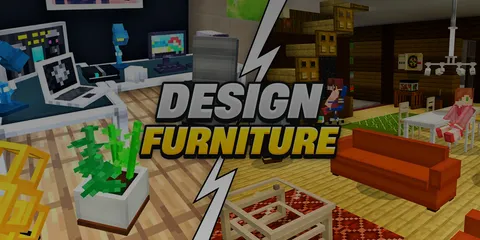
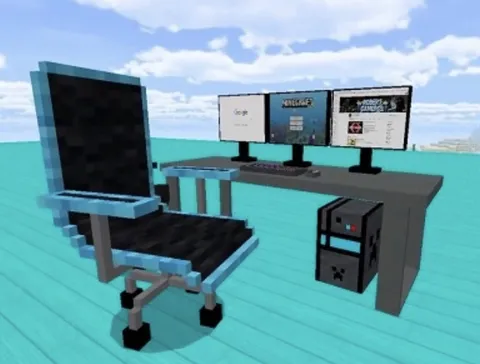
The safest combinations use addons that modify different parts of the game. A furniture mod and a mob addon almost never conflict because they touch completely different files.
Safe combinations:
- Furniture + Vehicles + Mobs + Texture pack
- Weapons + Armor + New biomes
- Food + Tools + Decorative blocks
Risky combinations:
- Two mob overhaul addons
- Two UI/HUD addons
- Two addons that both modify the player entity
Step 2: Import All Addons
Download your chosen addons and import them one at a time. For the full process, follow our download and install guide.
Step 3: Create a Test World
Never experiment on your main world. Create a new Creative world specifically for testing.
- Create new world in Creative mode
- Go to Behavior Packs — activate all imported behavior packs
- Go to Resource Packs — activate all imported resource packs
- Launch the world
Step 4: Test Systematically
Spend 5-10 minutes checking:
- Can you see and use items from each addon?
- Do mobs from each addon spawn and behave correctly?
- Does the game run without crashes or major lag?
- Are textures rendering properly?
Step 5: Adjust Load Order if Needed
If something looks wrong, exit the world, rearrange the pack order, and re-enter.
Troubleshooting Guide
Addon items are invisible: The resource pack is missing or deactivated. Check that both behavior and resource packs from that addon are active.
Game crashes on world load: Too many packs or a hard conflict. Deactivate all packs, then add them back one at a time to isolate the problem.
Custom mobs do not spawn: Another addon may be overriding the spawn rules. Move the mob addon higher in the load order.
Textures look wrong on custom items: A resource pack conflict. Ensure the addon's resource pack is above any global texture packs.
Pre-Tested Addon Bundles
Want curated combinations that work together? Check our themed addon bundles with compatibility already verified.
Browse Collection →Performance Tips for Multiple Addons
Running many addons simultaneously requires more resources from your device. Keep things smooth with these settings:
- Render distance: Drop to 8 chunks (from default 12-16)
- Fancy graphics: Turn off particles and smooth lighting
- Simulation distance: Reduce to 4 chunks on mobile
- Background apps: Close everything else before launching Minecraft
- Restart after installing: Always restart Minecraft after importing new addons
For ready-made bundle ideas, check our 10 curated addon bundles by theme.
How to Install Addons
New to Bedrock addons entirely? Our complete download and installation guide covers everything from finding addons to importing them on iOS, Android, and Windows.